Common Issues & Fixes
Quick solutions for the most common Kwiro issues -- widget not showing, sync problems, and AI response quality.
Quick Fixes for Common Problems
Most issues with Kwiro have simple solutions. Here are the problems we see most often and how to fix them.
Widget Not Showing on My Store
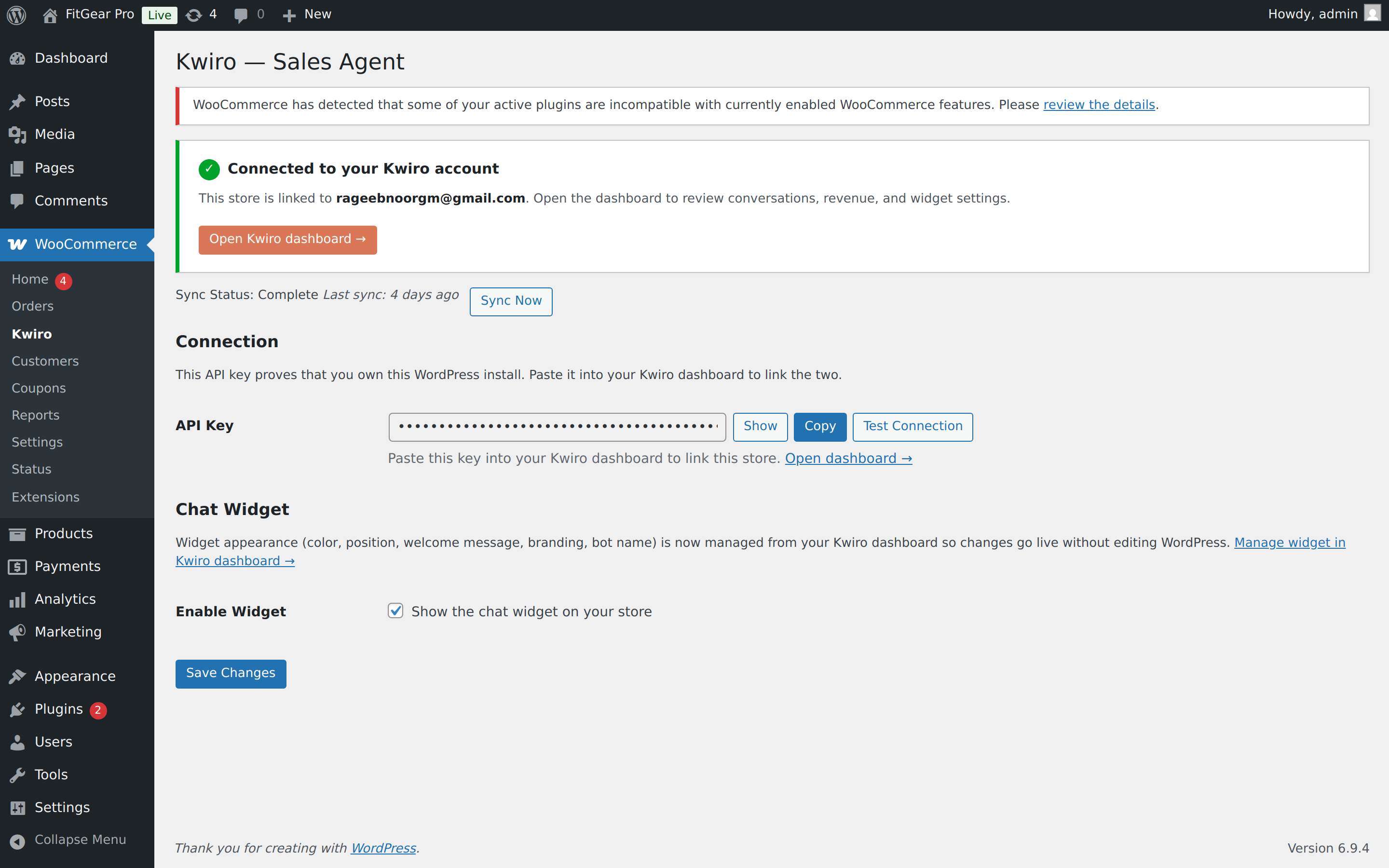
Check if the plugin is enabled. Go to AI Sales Assistant in your WordPress sidebar and make sure the Enable Widget toggle is turned on. This is the most common cause.
Clear your cache. If you use a caching plugin (like WP Super Cache, W3 Total Cache, or LiteSpeed Cache), clear your cache after activating Kwiro. Cached pages may be serving an older version of your site that does not include the widget code.
Check for theme conflicts. Some themes override the footer area where the widget loads. Try switching to a default WordPress theme (like Twenty Twenty-Four) temporarily. If the widget appears, your theme is blocking it. Contact us with your theme name and we can help.
Check your display rules. If you set the widget to show only on specific pages, make sure the page you are testing is included. Go to AI Sales Assistant > Widget > Display Rules to review.
Try an incognito window. Browser extensions (especially ad blockers) can sometimes hide chat widgets. Open your store in a private/incognito window to test.
Product Sync Is Stuck
Check that products are published. Kwiro only syncs products with a "Published" status in WooCommerce. Draft, pending, or private products are skipped. Go to Products in your WordPress sidebar and verify your products are published.
Manually trigger a resync. Go to AI Sales Assistant > Settings and click the Resync Products button. This restarts the sync from the beginning.
Check your internet connection. Kwiro needs to send your product data to our servers. If your hosting has connectivity issues or a firewall blocking outgoing requests, the sync may fail. Contact your hosting provider if you suspect this.
Large catalogs take longer. If you have more than 1,000 products, the sync can take 10-15 minutes. Check the progress bar on the settings page -- if the number is increasing, the sync is working, just slowly.
AI Is Giving Wrong or Odd Answers
Improve your product descriptions. The AI relies on the information in your WooCommerce product descriptions. If a product has a very short or vague description, the AI may not recommend it accurately. Add details about features, materials, use cases, and who the product is for.
Check for outdated product data. If you recently changed prices or stock status, give Kwiro a minute to pick up the changes. You can also click Resync Products to force an immediate update.
Review your custom instructions. If you added custom AI instructions under AI Settings, make sure they are not conflicting or confusing. Try removing custom instructions temporarily to see if the default behavior is better.
Widget Looks Wrong or Overlaps Other Elements
Change the widget position. Go to AI Sales Assistant > Widget and switch from Bottom Right to Bottom Left (or vice versa) to avoid overlapping with other elements on your site like cookie banners or floating buttons.
Contact us. If the widget has visual issues on your specific theme, let us know at [email protected] with a screenshot and your theme name. We test across many themes but cannot catch every combination.
Related reading
Getting Started
What is Kwiro?
Learn what Kwiro does, who it's for, and how it turns your WooCommerce store into a 24/7 sales machine.
ReadDaily Use
Your Dashboard Overview
A guided tour of the Kwiro dashboard -- see your AI's performance, revenue impact, and customer conversations at a glance.
ReadCustomization
Customizing Your Widget
Match the Kwiro chat widget to your store's brand with custom colors, position, welcome message, and bot name.
Read