Browsing Conversations
Read every conversation your AI had with a shopper. See exactly what it recommended, where it helped, and where it could improve.
Read Every Word the AI Said
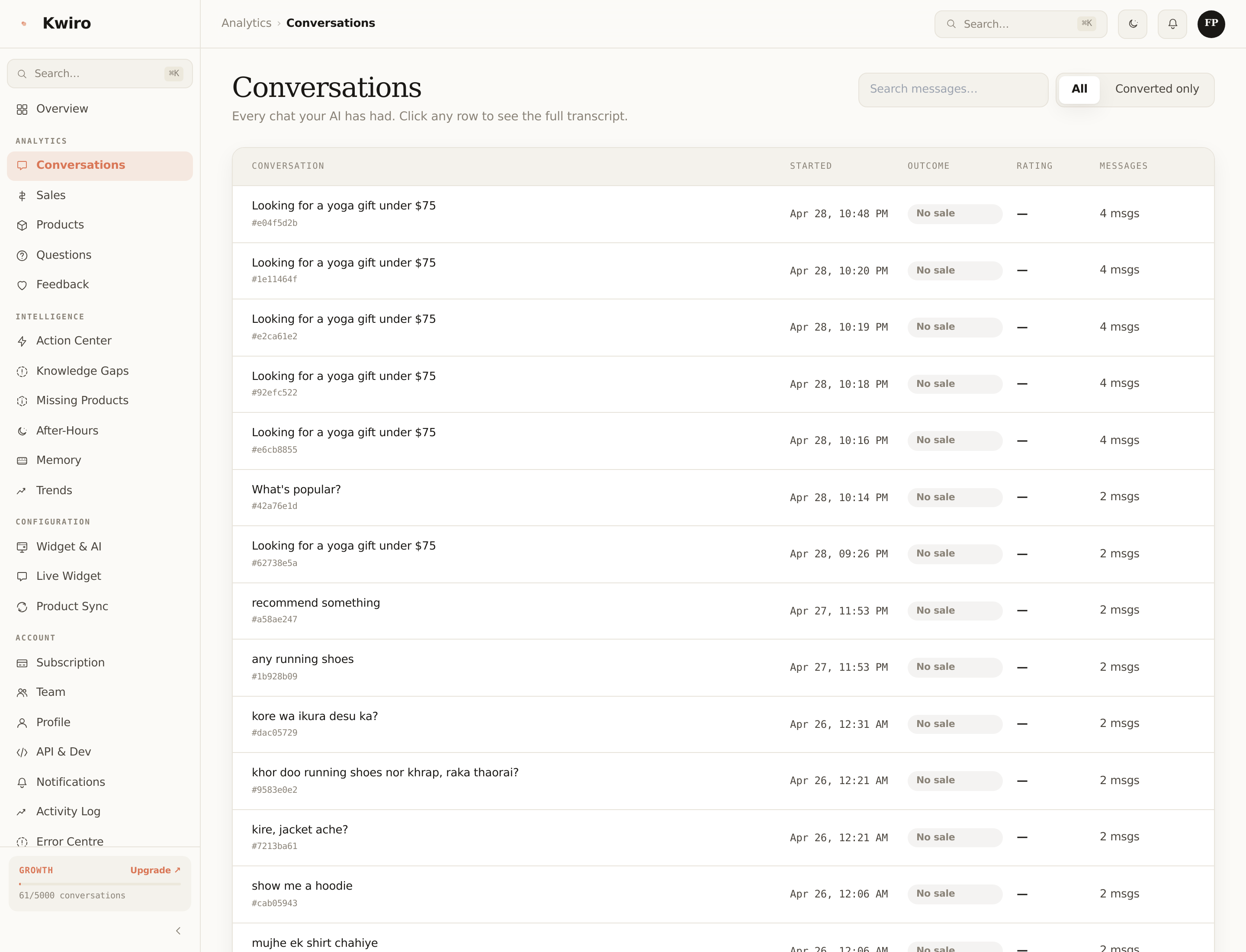
The Conversations page in your dashboard shows every chat your AI has had with a real shopper. You can read the full transcript of each one — what the customer asked, what the AI replied, which products it recommended, and whether the customer ended up buying.
Why This Exists
Most chatbot tools hide conversations behind aggregate metrics. We built the opposite — full transparency, because shop owners need to trust what the AI is saying about their brand.
Three reasons to actually read them:
- Verify quality. Random-spot-check a few conversations a week. If something feels off, you'll catch it early.
- Find product gaps. When shoppers ask for things you don't have, you'll see exactly what wording they use. Add those products. Or block those topics.
- Improve your copy. The questions shoppers ask are the questions your product pages should already be answering. Steal the wording.
What Each Conversation Shows
Click any conversation in the list to open the transcript. You'll see:
- The full chat history — both shopper and AI messages, in order, with timestamps.
- Product cards — exactly which products the AI recommended, with the prices and links it showed.
- Outcome — whether the conversation led to an order (direct or assisted attribution).
- Customer satisfaction — if the shopper rated the response, you'll see thumbs up / down.
- Tags — auto-detected sentiment, intent, and topic.
Filtering & Search
The list page lets you filter by:
- Date range — past 7 days, 30 days, custom.
- Outcome — only conversations that converted, only ones that didn't, all.
- Sentiment — happy, frustrated, neutral.
- Page-numbered pagination — handles thousands of conversations without breaking.
What to Do If You Spot a Bad Answer
Two options, depending on how you want the AI to behave next time:
- One-off correction. Open the conversation. Look for the question that got the bad answer. Take note of it.
- Permanent fix via Knowledge Gaps. If you see the same bad-answer pattern across multiple conversations, head to the Knowledge Gaps page and resolve it once. The AI applies your correction to every future similar question. See Knowledge Gaps.
Privacy Note
Conversations are stored to power your dashboard analytics, train your store's memory, and help you improve. Customers are not personally identified — we don't capture names, emails, or payment info from chats. Only the conversation content + the order ID if they checked out.
For more on data handling see Data Privacy.
Related reading
Getting Started
What is Kwiro?
Learn what Kwiro does, who it's for, and how it turns your WooCommerce store into a 24/7 sales machine.
ReadCustomization
Customizing Your Widget
Match the Kwiro chat widget to your store's brand with custom colors, position, welcome message, and bot name.
ReadSmarter AI
Memory Inspector
Pin, edit, or delete what your AI has learned. The unique tool that lets you control the patterns Kwiro uses to sell.
Read