Connect Your Store
Link your WooCommerce store to Kwiro in one click and start syncing products.
One-Click Connect
After installing the Kwiro plugin, the next step is to link your WooCommerce store to your Kwiro account. This is what gives the AI access to your product catalog, prices, stock, and reviews.
How to Connect
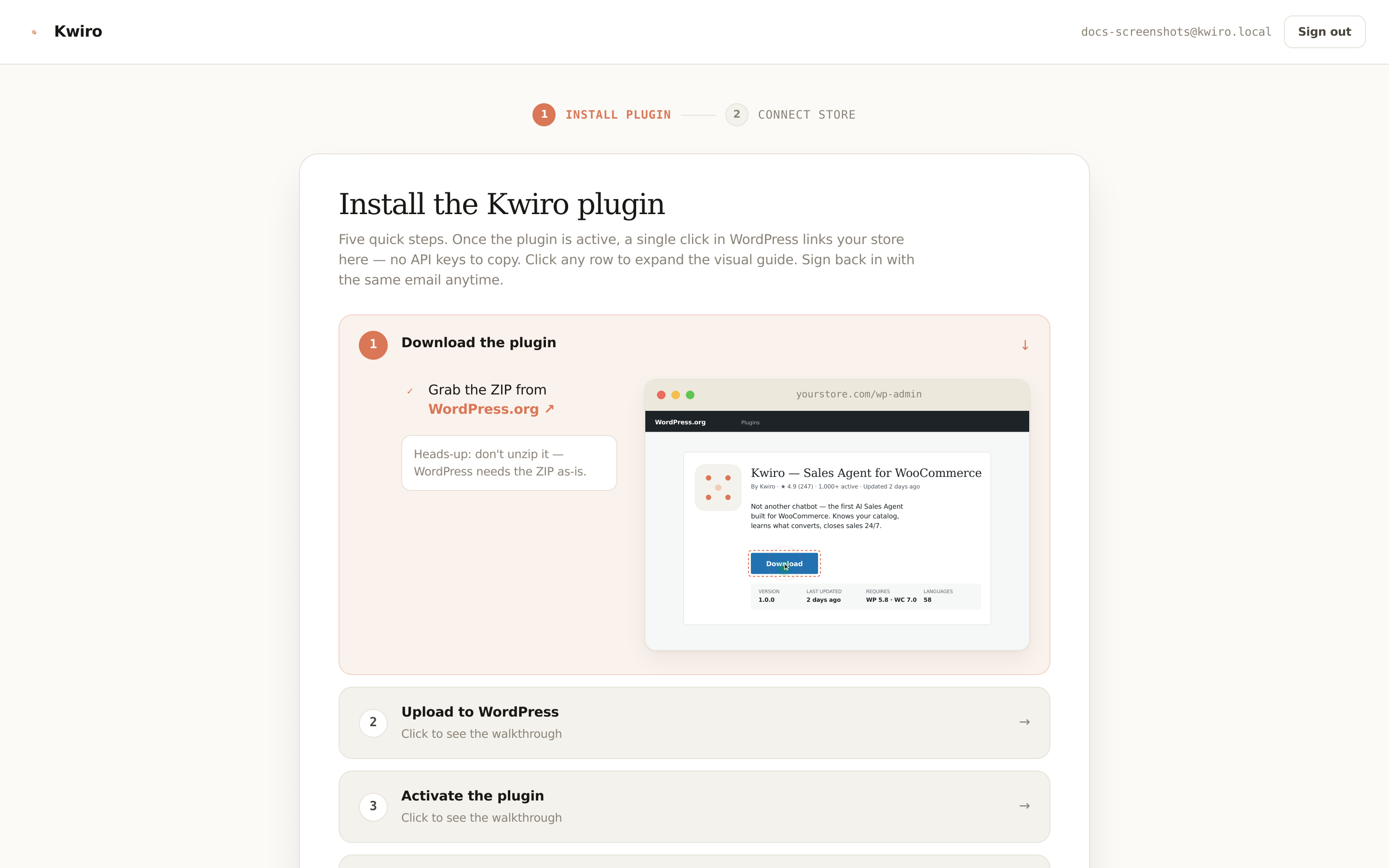
- In your WordPress admin, open Kwiro → Settings.
- Click "Connect to Kwiro".
- You'll be redirected to your Kwiro dashboard. If you don't have an account yet, you'll be prompted to create one with a magic-link email — no password needed.
- Approve the connection. Your store registers with Kwiro and starts syncing automatically.
That's it. You don't need to copy API keys, run commands, or edit code.
What Happens After Connect
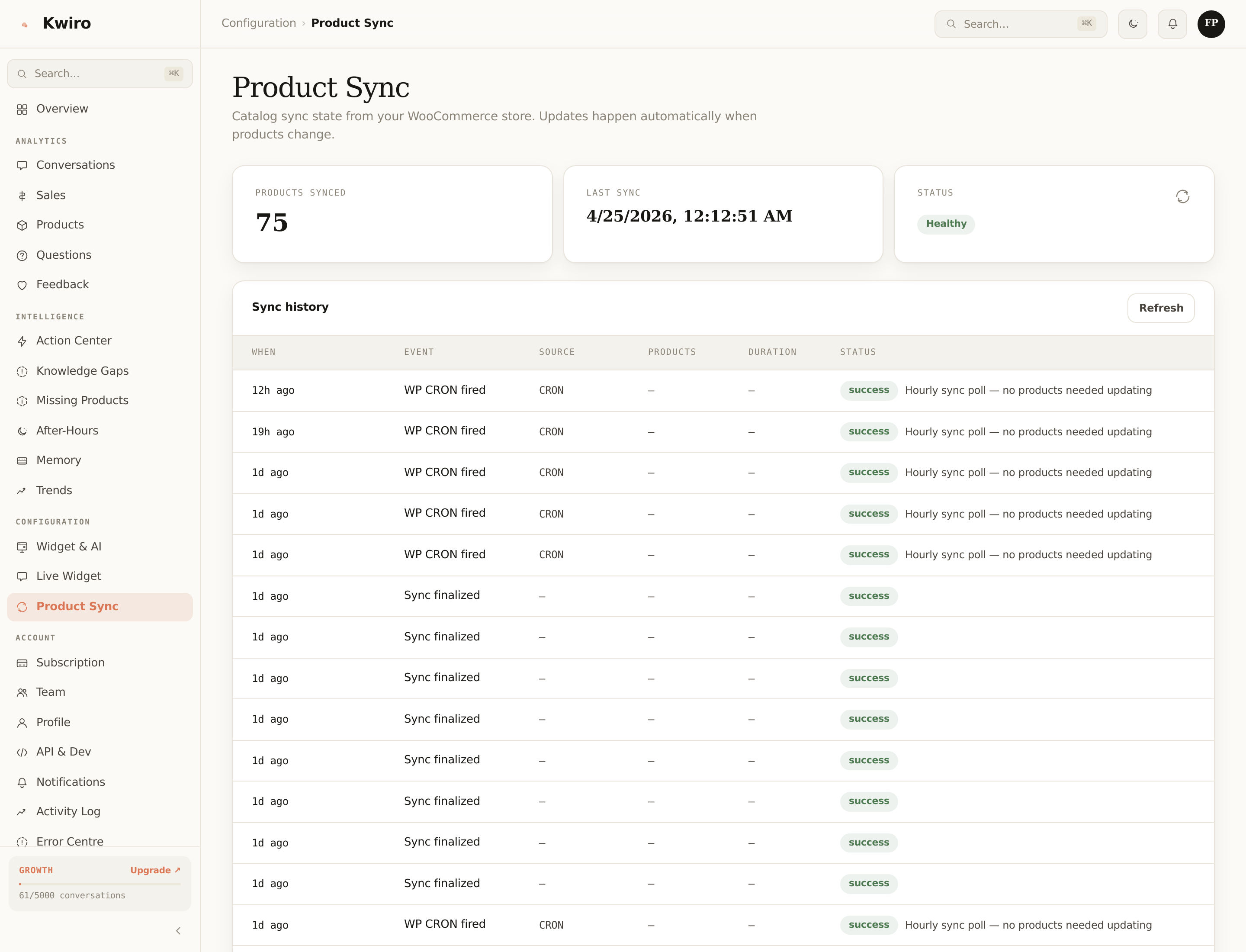
Kwiro starts a background sync of your entire catalog. For most stores this finishes in 1–5 minutes. You can watch the progress on the Product Sync page in the dashboard.
While the sync runs, Kwiro:
- Reads every published product (simple + variable products with their variations)
- Captures name, description, price, sale price, categories, tags, images, attributes, reviews, and stock status
- Builds an embedding (a compressed mathematical representation) of each product so the AI can find the right one for any shopper question
Existing products are processed first, then any new products you add show up in seconds via WooCommerce hooks — no waiting for a nightly batch.
What If the Sync Stalls?
Kwiro is built to work on the slowest shared hosts. The plugin auto-adjusts batch size based on your server's response time. If something does get stuck, the Product Sync page in your dashboard shows you exactly where and gives you a "Retry batch" button.
For ongoing issues, see Common Issues & Fixes.
Multiple Stores?
Each store needs its own connection. If you run more than one WooCommerce site, install the plugin on each, and each will register as a separate store in your Kwiro account. The Scale plan supports managing all of them from one dashboard.
What's Next
Once your sync hits 100%, head to Your First AI Conversation to test the AI on your live store.
Related reading
Daily Use
Your Dashboard Overview
A guided tour of the Kwiro dashboard -- see your AI's performance, revenue impact, and customer conversations at a glance.
ReadCustomization
Customizing Your Widget
Match the Kwiro chat widget to your store's brand with custom colors, position, welcome message, and bot name.
ReadSmarter AI
Memory Inspector
Pin, edit, or delete what your AI has learned. The unique tool that lets you control the patterns Kwiro uses to sell.
Read